
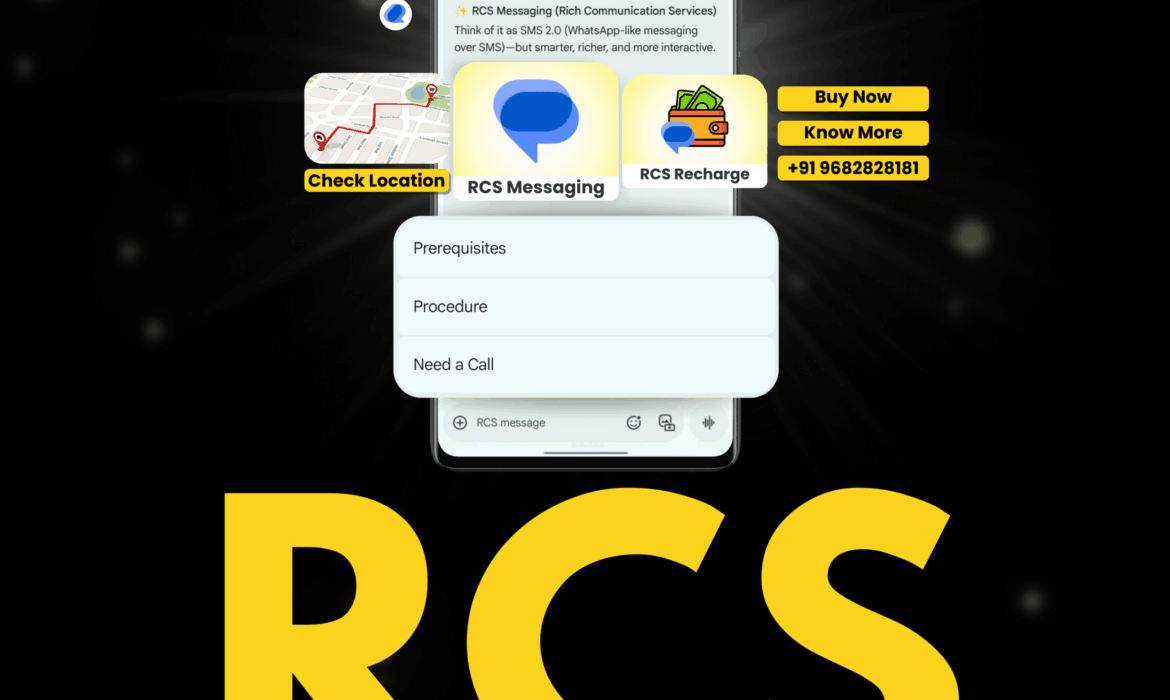
Still sending plain text SMS to your customers? It’s time to upgrade. RCS (Rich Communication Services) lets you send messages with your business name, your logo, images, buttons, and real two-way chat – straight to your customer’s phone, on an app they already use every day.
LeminAi is an authorized Google RBM (RCS Business Messaging) Partner and the largest RCS provider in India. But the real story here isn’t just “we can send RCS messages.” It’s everything built around that message – an AI that talks to your customers on its own, a chatbot that never sleeps, automated follow-up sequences, and a chat inbox that feels just like WhatsApp.
Here’s a simple walkthrough of everything the dashboard can do, starting with the features that matter most.
Before You Start: Setting Up
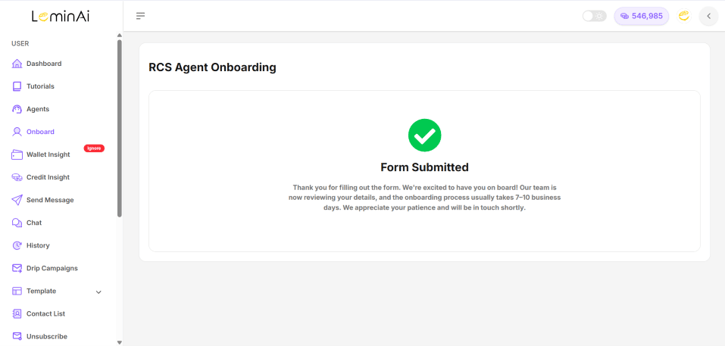
Onboard
This is step one. Fill out the RCS Onboarding form with your business details and upload the required documents. Approval usually takes 7-10 business days. Once you’re approved, you’re ready to send.
Agents (Your Telecom Identity)
An “Agent” is your registered business identity – this is what shows up as your verified name and logo when you message someone. Right now, only Jio and Vi run RCS in India, and LeminAi gives you both.
Here’s something only LeminAi offers: Jio Instant. Normally, every template needs approval from the telecom company before it can be used. With Jio Instant, there’s no approval wait – your template is ready the second you create it.
Simple example: Running a flash sale tonight? With Jio Instant, you don’t wait around for approval – you just send.
The Features That Matter Most
1. AI Agent - Your Own AI Salesperson on RCS
This is the biggest feature LeminAi offers, and almost no other RCS provider has it.
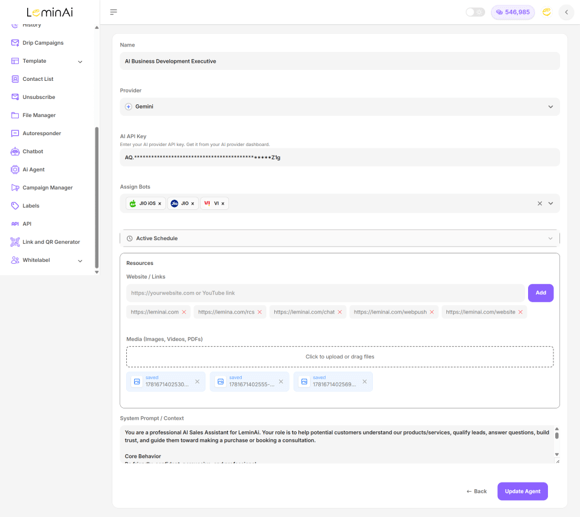
The AI Agent connects to Google’s Gemini AI (you add your own API key) and talks to your customers automatically – answering questions, sharing information, and even guiding someone toward a purchase, without any human involved.
Setting it up is simple:
- Give your AI a name (like “AI Sales Executive”)
- Connect it to Gemini using your API key
- Choose which agents (Jio, Vi, etc.) it should work on
- Set an active schedule, if you only want it running during business hours
- Feed it your website links and any documents, images, or videos it should know about
- Write simple instructions telling it how to behave – for example: “You are a sales assistant for our business. Answer customer questions, share pricing, and help them book a demo.”
Why it matters: Your customer messages you at 11 PM asking about pricing. Instead of waiting till morning, the AI Agent – trained on your actual website – replies immediately, in your tone, with accurate information. A human only steps in once the customer is ready to buy.
2. Chatbot - Instant Replies Based on Keywords
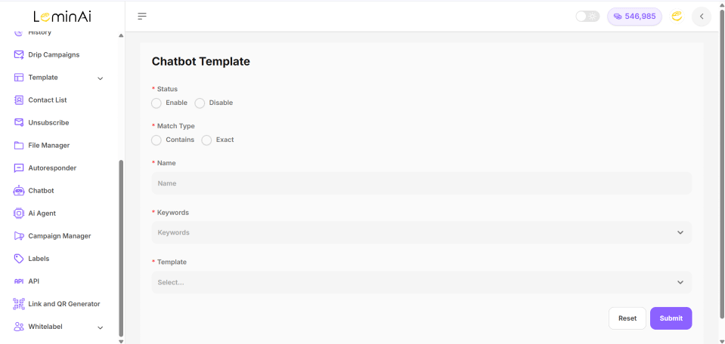
Think of this as a simpler, rule-based version of the AI Agent. You create a chatbot, set some keywords, and whenever a customer’s message matches those keywords, they get an instant automatic reply.
You can choose:
- Contains – replies if the keyword appears anywhere in the message
- Exact – replies only if the message matches the keyword exactly
You can create as many chatbots as you want, with no limit.
Why it matters: If someone messages “pricing” or “demo,” they get an instant answer – no waiting for a human, any time of day. Here’s the thing most people don’t know: almost no RCS provider offers chatbots at all – most will tell you it’s not even possible on RCS. LeminAi’s team sets this up for you.
3. Drip Campaigns - Automatic Follow-Up Over Several Days
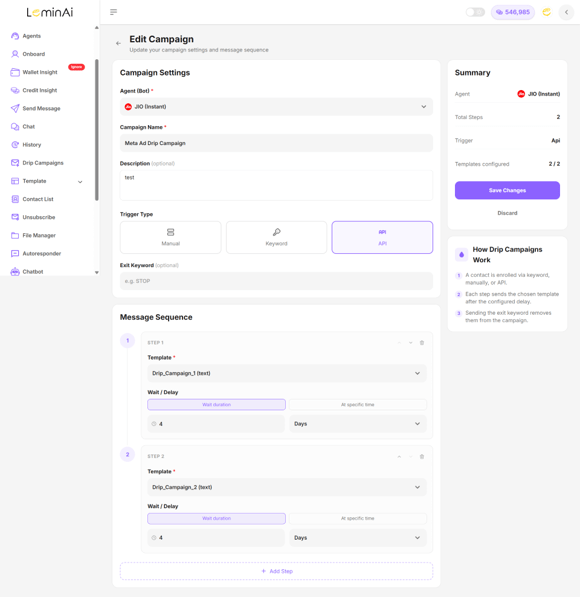
A Drip Campaign sends a series of messages over time, automatically. Think of it like a follow-up plan that runs itself – Day 1 you get one message, Day 3 you get the next, Day 6 another, and so on.
To set one up, you choose:
- Which agent (Jio/Vi) it runs on
- How people get enrolled – Manually, by sending a Keyword, or automatically through an API call from your website
- An optional Exit Keyword (like “STOP”) that removes someone from the sequence
- Your message steps – add as many as you like, each with its own message and its own wait time before the next one goes out
In simple words, here’s how it works: someone joins the campaign → they get message 1 → they wait a few days → they get message 2 → and so on, until the sequence ends (or they type the exit keyword and leave early).
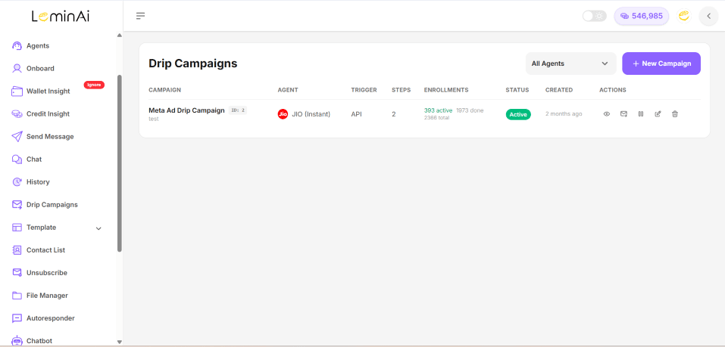
Real example: LeminAi runs its own “Meta Ad Drip Campaign” – when someone clicks a Facebook/Instagram ad and shows interest, they’re automatically enrolled and receive a 2-message follow-up sequence over the next few days. At the time of writing, this one campaign had over 2,300 people go through it.
How is this different from a Chatbot? A Chatbot sends one instant reply the moment it sees a matching keyword – it’s a single response, triggered by a message. A Drip Campaign is a full customer journey – a whole series of messages spread across days, triggered by whatever event you choose (a keyword, a manual add, or an action on your website via API), with you deciding exactly when each next message goes out.
Real example – Abandoned Cart Recovery: Imagine a customer adds a product to their cart on your website but doesn’t complete checkout.
- Immediately – they get an “You left something in your cart” message
- After 2 days – if they still haven’t purchased, they get a discount offer
- After 3 more days – a final follow-up message checking if they’re still interested
That’s a complete, automated customer journey – built entirely with Drip Campaigns, with zero manual follow-up needed from your team.
4. Chat - A WhatsApp-Style Inbox for RCS
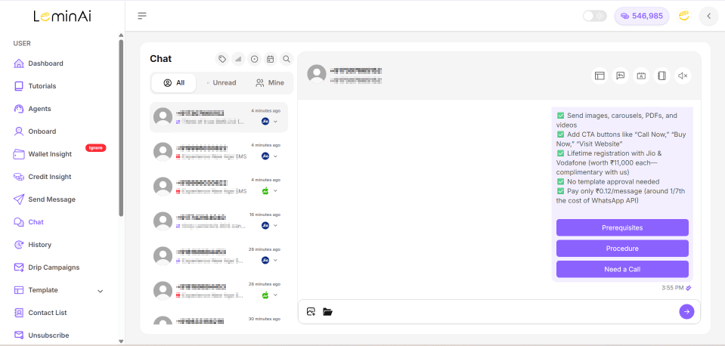
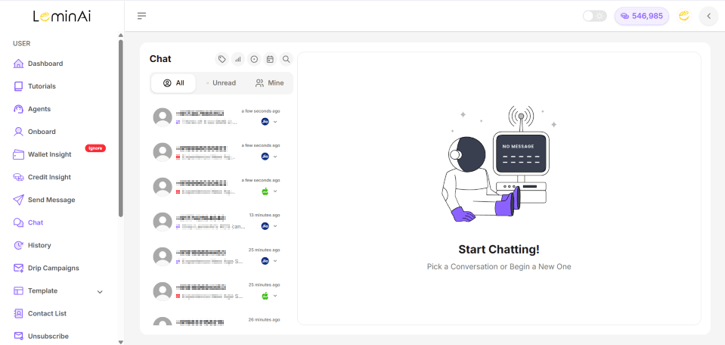
This is a full two-way messaging inbox, and it looks and feels exactly like WhatsApp Web. Almost no other RCS provider gives you this.
What you get:
- All / Unread / Mine tabs to organize your inbox
- Every conversation saved permanently – you’ll never lose chat history
- Read receipts – a clock means pending, one tick means sent, two grey ticks mean delivered, two blue ticks mean read
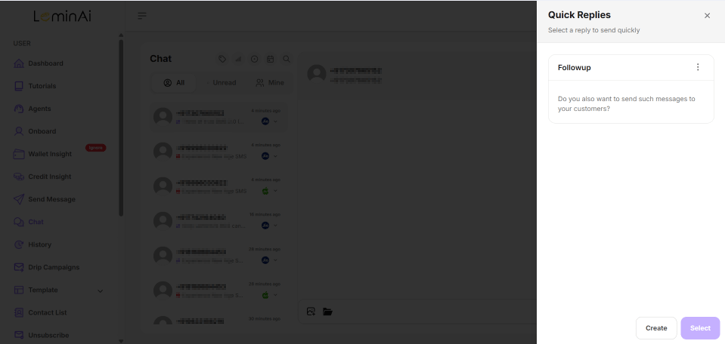
- Quick Replies – save your common answers and send them in one click instead of typing them out every time
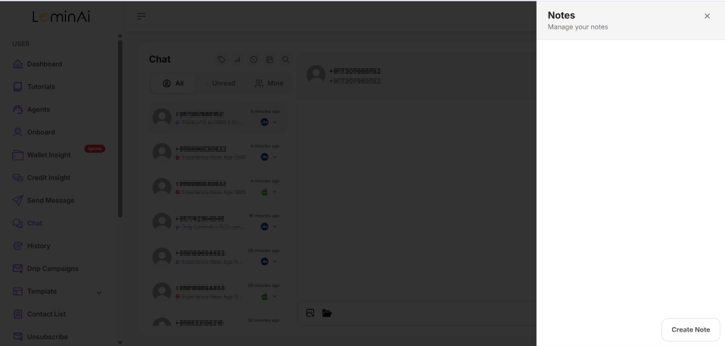
- Notes – leave a private note on any chat (like “discussed pricing, follow up Friday”) that only your team sees
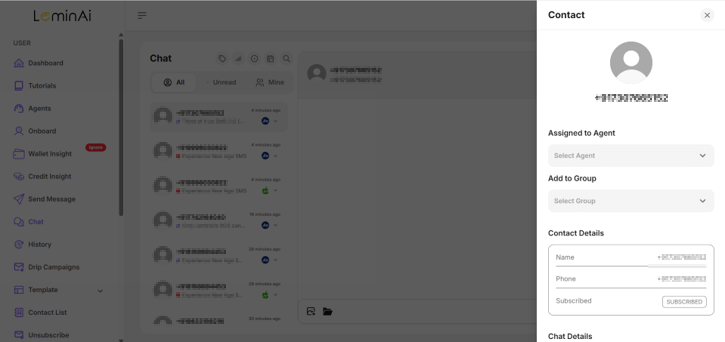
- Assign to Agent – hand off a conversation to a specific team member
- Labels – tag chats as “Hot Lead,” “Follow Up,” etc., and even set labels to apply automatically based on keywords in the message
Why it matters: Your whole sales team can work out of one shared inbox – assigning leads, leaving notes for each other, and replying instantly with saved quick replies – without needing a separate CRM.
5. Autoresponder - Reply the Moment Someone Messages You
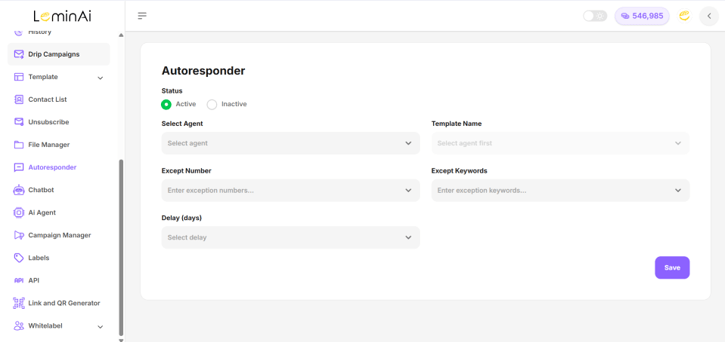
This sends an automatic first reply the moment someone responds to your message – something like “Thanks for reaching out! Our team will call you shortly.”
You can set:
- Which template it should send
- Numbers or keywords it should ignore (like if someone says “not interested”)
- A delay (in days) so the same person doesn’t get the auto-reply every single time they message
Why it matters: Even if your team is busy, every customer gets an instant response, so nobody feels ignored.
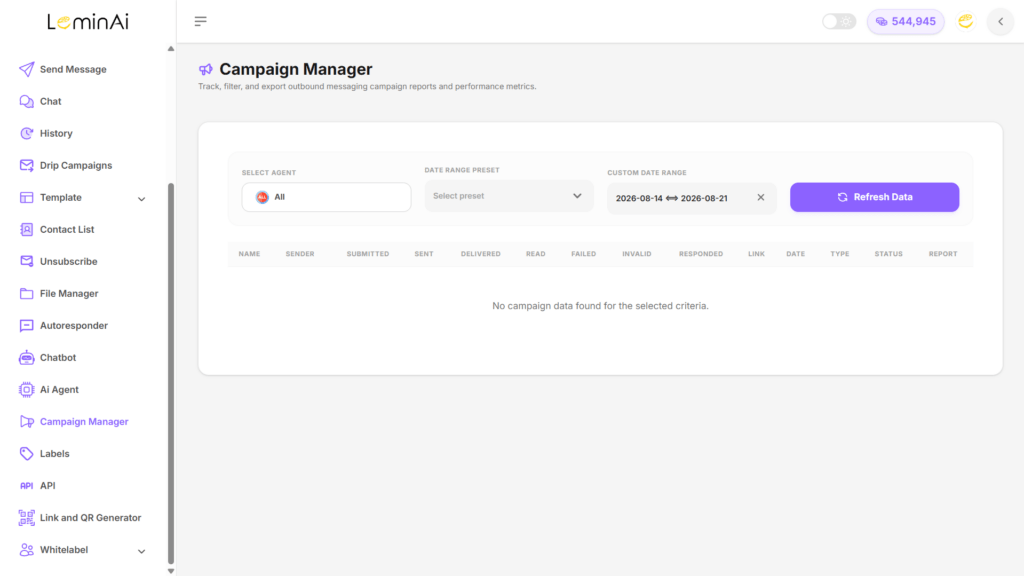
6. Campaign Manager - Real-Time Reports on Every Message
This is your report card for every campaign you send – how many messages were Submitted, Sent, Delivered, Read, Failed, Invalid, and how many people Responded or clicked a link.
You can filter by agent and by date range, and hit Refresh to see live numbers. The best part: reports are exportable to Excel and update in real time – the second your campaign goes out, the report starts filling in live as delivery statuses come in, instead of making you wait.
Why it matters: You know exactly how well a campaign performed within minutes, not days – and you can download the data to share with your team or clients.
And Everything Else You Can Do
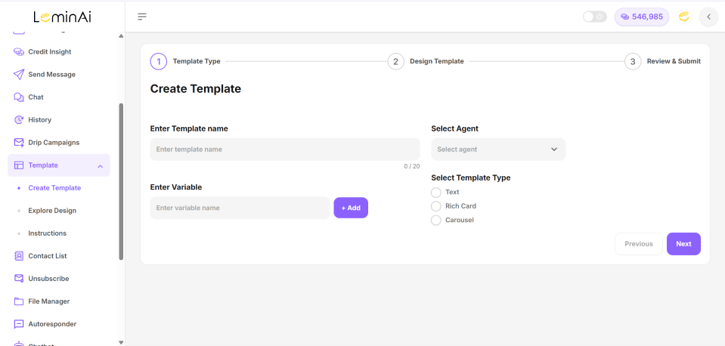
Create Template
Every message starts as a template. It’s a simple 3-step process:
- Choose your Template Type – Text (up to 2,000 characters), Rich Card (with images, buttons, suggested replies), or Carousel (up to 10 cards in one message)
- Design it – add a title, description, media, and up to 4 buttons
- Review and submit
You can also add variables so each message is personalized – “Hi {Name}” turns into “Hi Rahul” automatically, using the names from your contact list. Once created, all your templates are saved under Explore Design, so you can reuse them anytime.
Simple example: One Carousel template showing 5 products with images and “Buy Now” buttons still costs the same as sending one single message.
Contact List
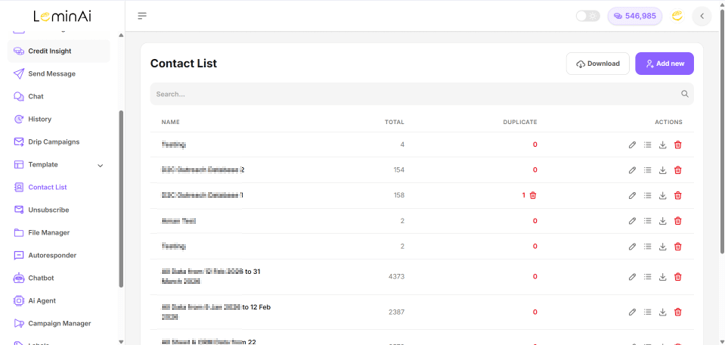
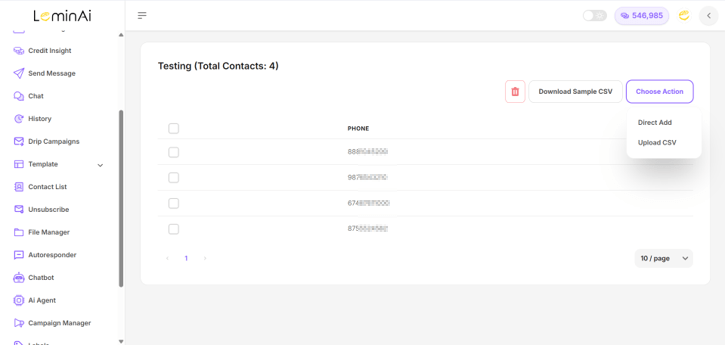
Create and manage multiple contact lists. You can see the total contacts in each list and how many are duplicates (with a one-click cleanup). Add contacts by pasting numbers directly (Direct Add) or by uploading a CSV file – a sample file is provided so you get the format right. Lists can also be downloaded anytime.
Simple example: Keep separate lists for different sources – “Website Signups,” “Meta Ad Leads,” “Old Customers” – so you always send the right message to the right group.
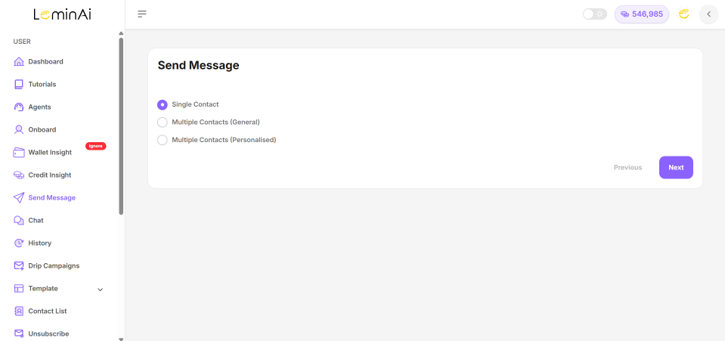
Send Message
Once your template and contact list are ready, sending takes seconds. Choose:
- Single Contact – send to just one person
- Multiple Contacts (General) – send the same message to everyone in a list
- Multiple Contacts (Personalised) – each person gets the message with their own name/details filled in
Then pick your agent, template, and contact list, and either send now or schedule for later.
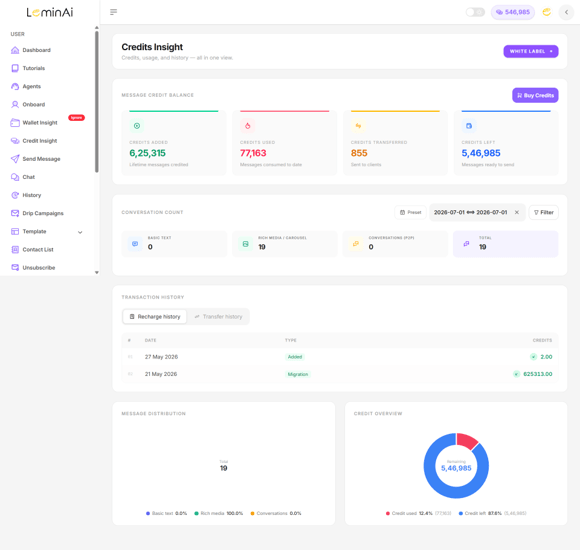
Credit Insight
See exactly how your message credits are being used – Credits Added, Credits Used, Credits Left, and Credits Transferred (useful if you’re managing credits for clients). You can filter by date and see a simple breakdown of how many messages were Basic Text vs. Rich Media, plus your recharge and transfer history – all shown with easy-to-read charts.
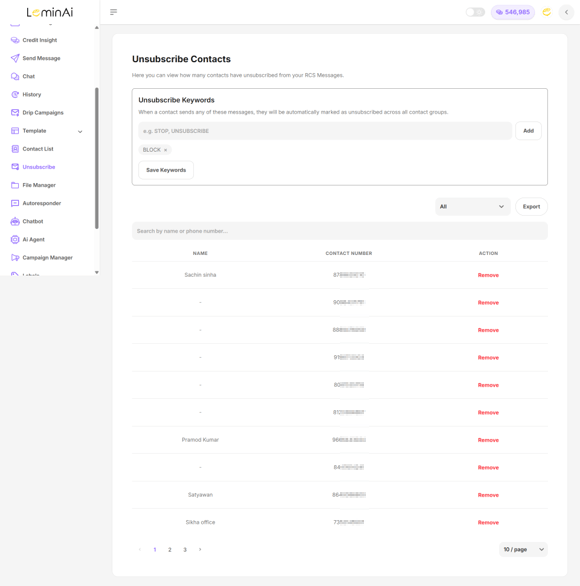
Unsubscribe
Every customer has the right to opt out, and there are two ways this happens:
- The built-in telecom unsubscribe button – every RCS message comes with a native “Unsubscribe” option provided by the telecom operator itself. If a customer taps it, they opt out of your brand directly through their messaging app.
- Keyword-based unsubscribe, powered by LeminAi – you set your own custom keywords (like “STOP,” “UNSUBSCRIBE,” or even something casual like “BLOCK”). The moment a customer sends that word to you, LeminAi automatically adds their number to your Unsubscribe list – no manual work needed.
Once a number is on this list, that customer will never receive another promotional message from you, across any campaign or list. If needed, you can always undo this – just find the number and click Remove to take them off the unsubscribe list and resume messaging them.
Why it matters: Because your keyword can sound like a normal reply rather than an obvious “opt-out” command, it keeps things compliant without feeling robotic. You get two layers of opt-out protection – one built into RCS itself, and one fully customizable through LeminAi. You can search, filter, and export your full unsubscribed list anytime.
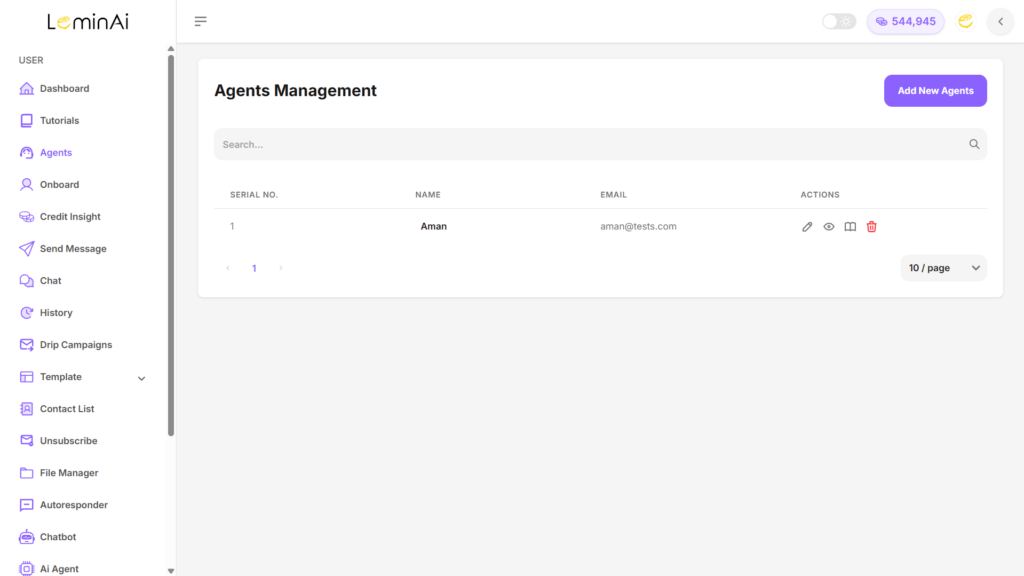
Agents Management (Your Team)
Create unlimited staff accounts, each with their own login and permissions. When adding a team member, simply tick which tabs they’re allowed to access – Chat, Templates, Send Message, and so on.
Two handy options here:
- Number Masking – hides the customer’s real phone number from that team member
- Show Assigned Chats Only – they only see chats assigned to them, not the whole inbox
Simple example: Give your support team access to just Chat (with numbers hidden), while your marketing lead gets full access to Templates and Campaign Manager.
File Manager
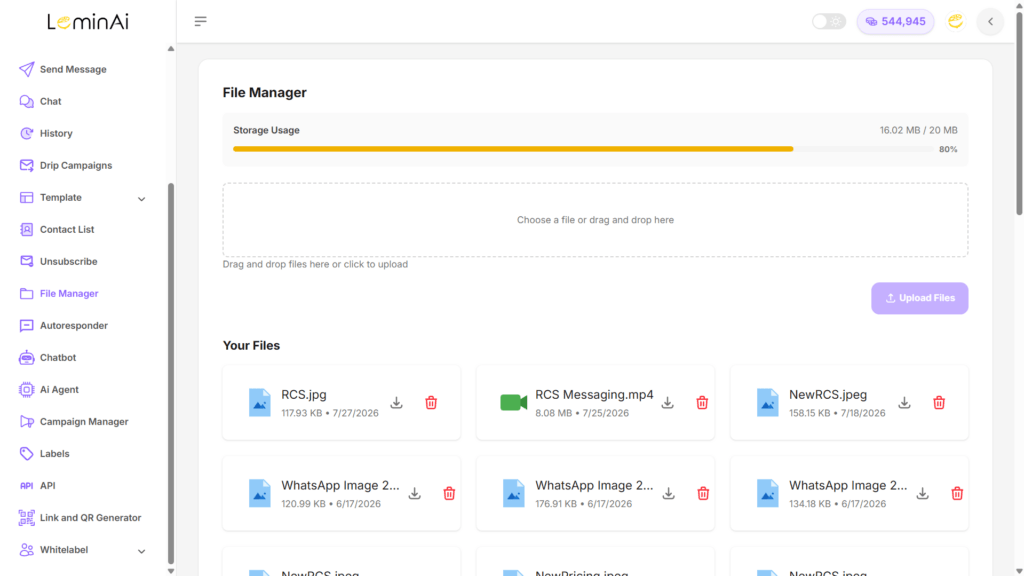
A simple storage space for all your images, videos, and PDFs, so you don’t need to re-upload the same file every time you build a new template. It shows how much storage you’ve used out of your plan.
API
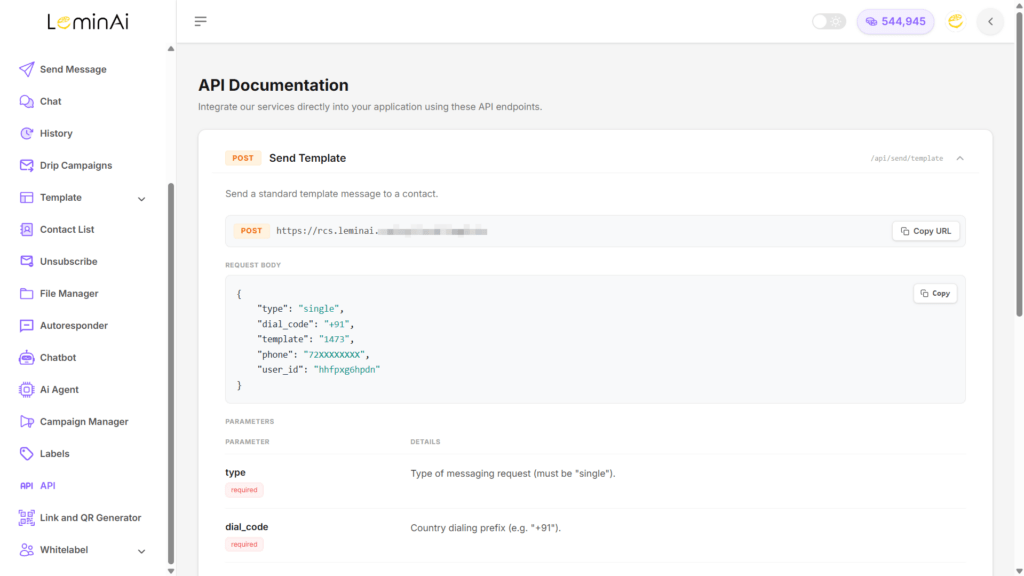
For businesses looking to connect RCS with their existing systems, working with a Google RBM Partner can simplify the implementation process. LeminAI provides the tools needed to integrate RCS messaging with websites, apps, and CRM workflows, helping businesses build automated messaging journeys around their existing technology stack.
- Send a Template or Send a Template with Variables – trigger a personalized message from your own system
- Set a Webhook – get incoming messages and delivery updates sent straight to your system
- Enroll a Drip Campaign Contact – automatically add someone to a follow-up sequence
Simple example: When someone signs up on your website or completes a payment, they can automatically get a welcome or confirmation message – no manual sending needed.
White label
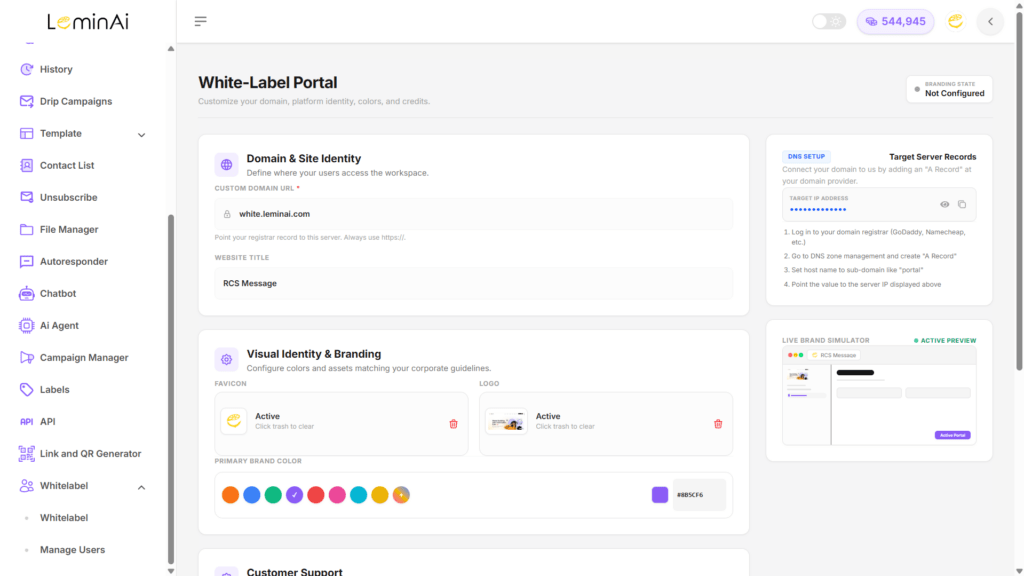
Want to resell RCS under your own brand? Whitelabel gives you your own RCS dashboard on your own domain – your logo, your branding. The Manage Users section lets you onboard your own clients and assign them credits directly.
Dashboard
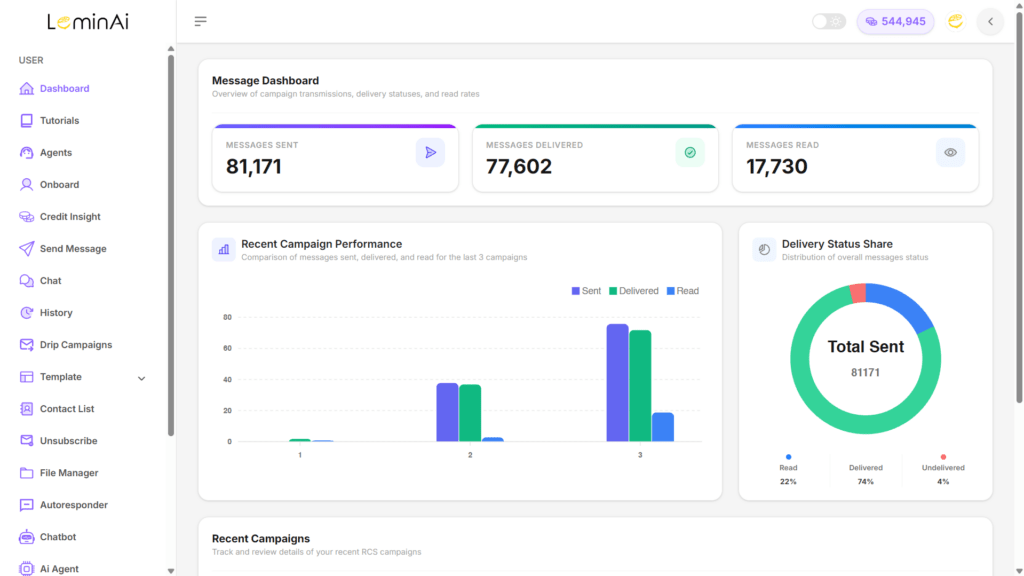
Your quick daily snapshot – total messages sent, delivered, and read, plus a summary of your last three campaigns.
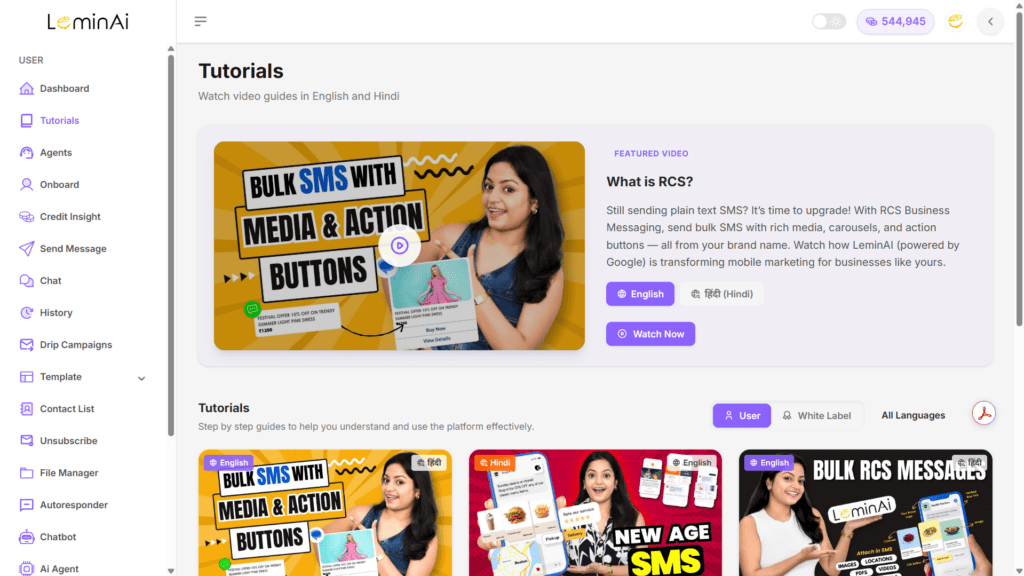
Tutorials
Step-by-step video guides in both English and Hindi, covering everything from “What is RCS?” to full walkthroughs of the dashboard and the Whitelabel setup. A good place to start if you’d rather watch than read.
The Bottom Line
Plenty of companies can send you an RCS message. What LeminAi actually gives you is everything most providers leave out:
- An AI Agent that talks to your customers on its own, trained on your website
- Unlimited chatbots – something almost no other RCS provider offers
- Drip campaigns that follow up with leads automatically over days
- A WhatsApp-style inbox with notes, quick replies, and read receipts
- Instant auto-replies so no customer is ever left waiting
- Live, Excel-exportable reports that update the second your campaign goes out
- Jio Instant – zero waiting time for template approval
- A full Whitelabel option if you want to build your own RCS business
Whether you’re sending your first campaign or building an agency around RCS, this dashboard is built to grow with you – starting with the Onboarding form, you can be up and running within days.